Learn the controls
Flying with virtual sticks
Use the on-screen sticks when no controller is connected.
No controller? The on-screen sticks are a complete way to fly. They use the same Mode 2 layout and the same flight model.
Where they appear
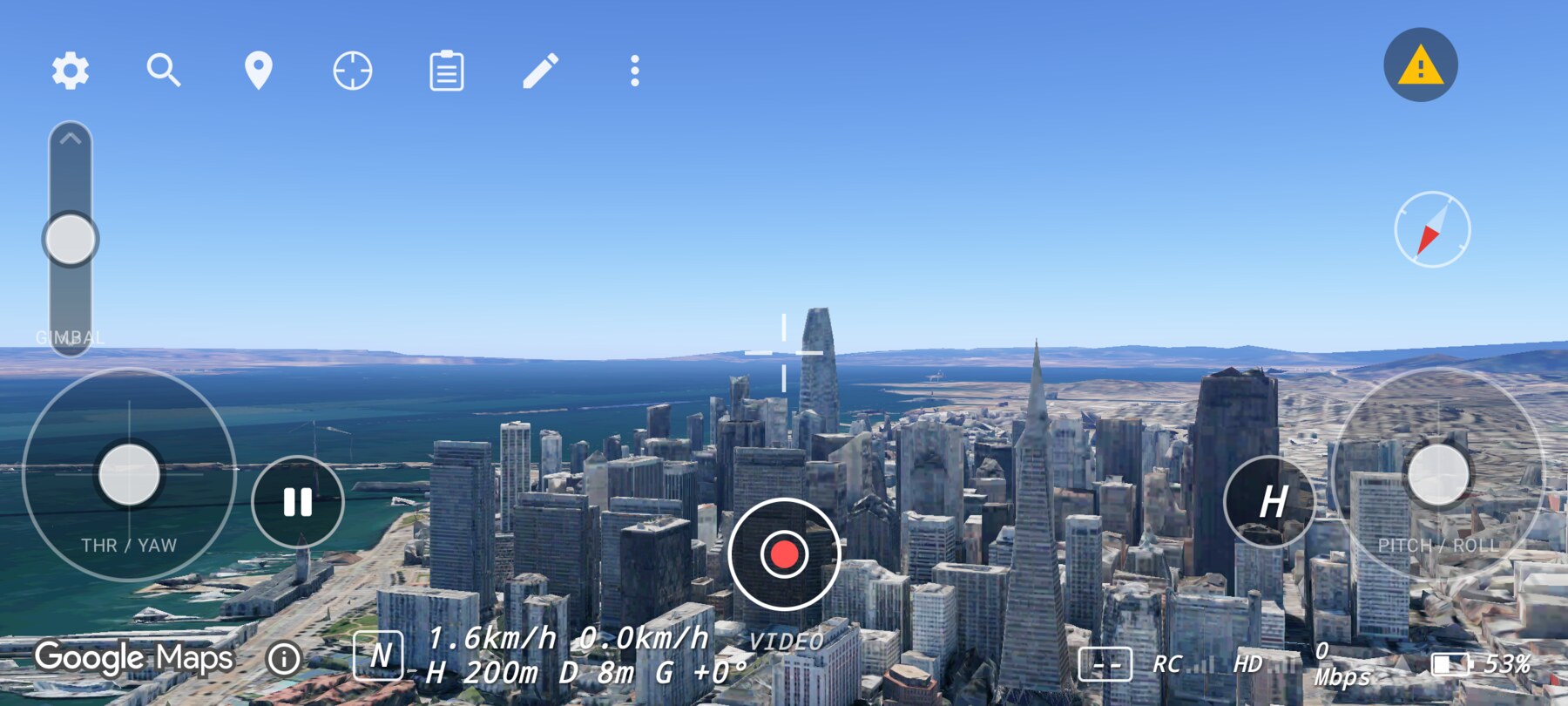
The virtual sticks appear whenever the app is not connected to an RC 3. The left stick is THR / YAW; the right stick is PITCH / ROLL. Both self-centre when you lift your finger.
How they differ from a controller
- No physical feedback. You cannot feel the spring centre or the stick's travel.
- Less precision. A thumb on glass has a shorter effective range than a gimbal stick.
- No front-panel buttons. Photo/video and play/pause are on-screen controls; the N/S/M switch is replaced by the mode badge and Flight Setup.
- No USB setup. There is nothing to connect, calibrate or permit.
Technique
- Rest your thumb near the stick centre, not on the edge of the screen.
- Make small movements and return to centre deliberately.
- Use the pause button between attempts rather than trying to hold a perfect hover.
- If a move needs precision, switch to Normal mode and shorten the input duration.
What still works
Play/Pause, H, the gimbal rocker, the shutter, the mode badge, search, plans, shots and annotations all work without a controller. The only thing you lose is the physical feel and the RC 3's front buttons.
Why this works
Using the same control mapping means the skills transfer: learning on virtual sticks still teaches you which axis does what. When you later connect an RC 3, the geometry of the controls is already familiar.
Common mistakes
- Dragging past the stick circle. Keep the gesture inside the circle; outside it the input is clamped.
- Using two fingers on one stick. One thumb per stick is easier to control.
- Expecting a physical spring. The stick returns to centre only when you release; there is no force feedback.
Try it yourself
Complete the first-flight exercise using only virtual sticks: hover, forward for two seconds, stop, yaw 90°, hover. Success is a clean stop without touching the screen twice.
Related guides
About the screenshots
Every screenshot and demo in this documentation was captured in FPV Map over the Transamerica Pyramid and the Financial District, San Francisco.
FPV Map is a simulator. It never sends commands to an aircraft, and virtual rehearsal is not a substitute for legal checks, a site survey or safe piloting.
Found a mistake or something that no longer matches the app? Report it.