
Build a shot from an idea
Build a shot from an idea
Scout the Financial District, choose a move, fly it, and document it.
This is the end-to-end workflow: start with a topic, scout the Financial District in 3D, choose a move, fly it, and save the idea as a shot with a start and end pose.
You'll need
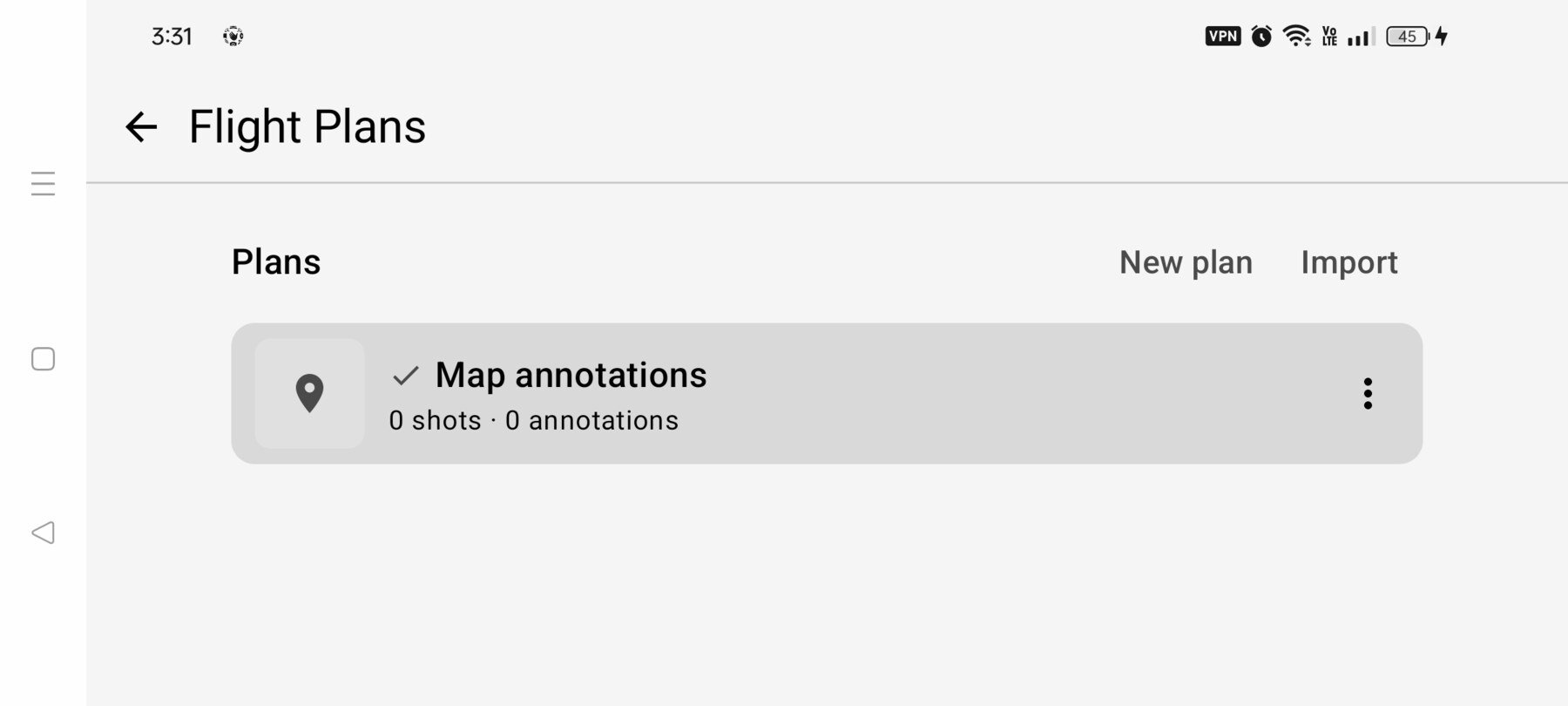
A flight plan (the default one is fine), Normal mode, and a few minutes of hover practice.
What you'll learn
- Turn a topic into a specific subject and movement.
- Scout coverage and visual anchors from the air.
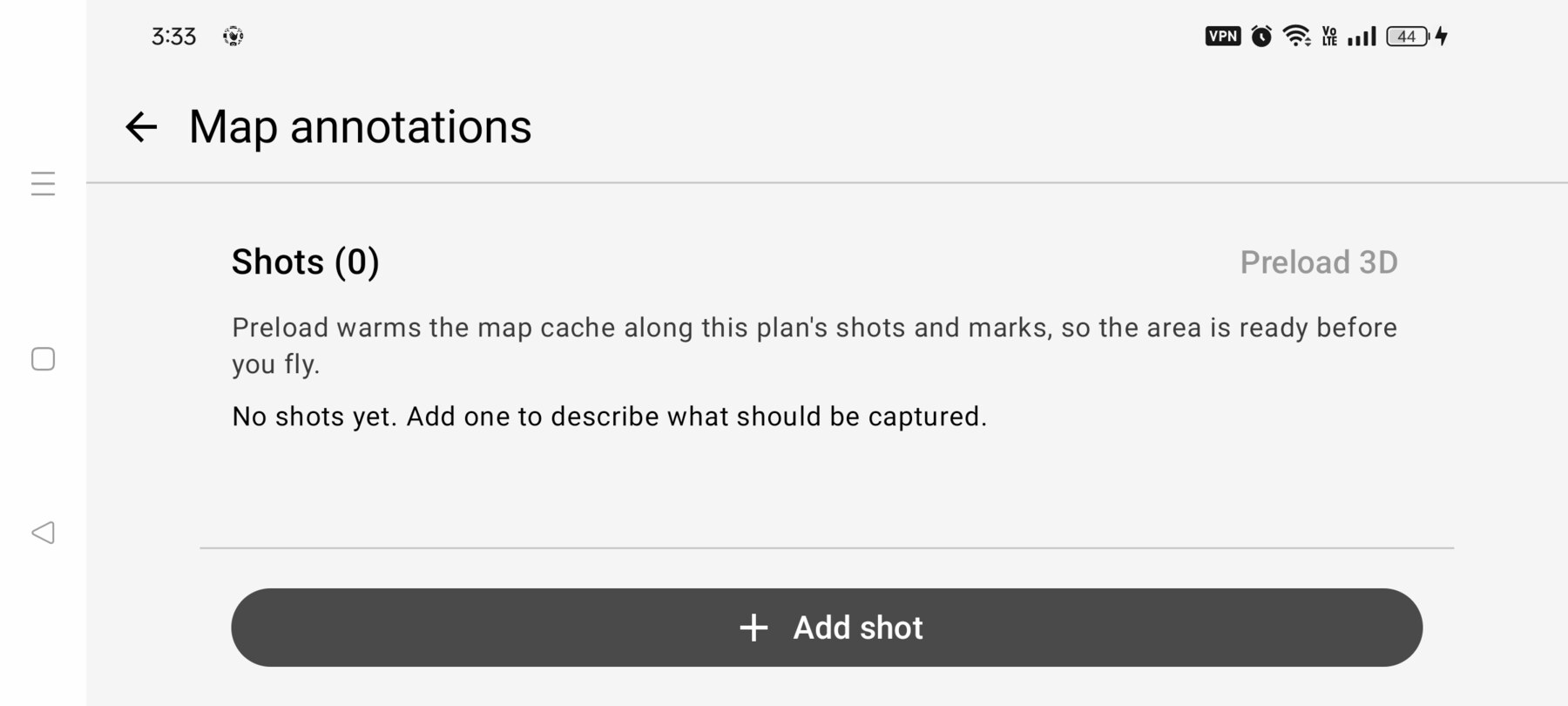
- Save a named shot with a start pose and movement instructions.
1. Turn the topic into a shot
Start with the sentence the shot has to support. For example: “San Francisco's financial centre still feels like a village of towers.” That suggests a subject (the Transamerica Pyramid), a context (the surrounding skyline) and a feeling (scale with intimacy).
Decide what the viewer needs to understand: where the subject is, how big it is, or how it relates to the city. That decision picks the shot type.
2. Scout the location in 3D
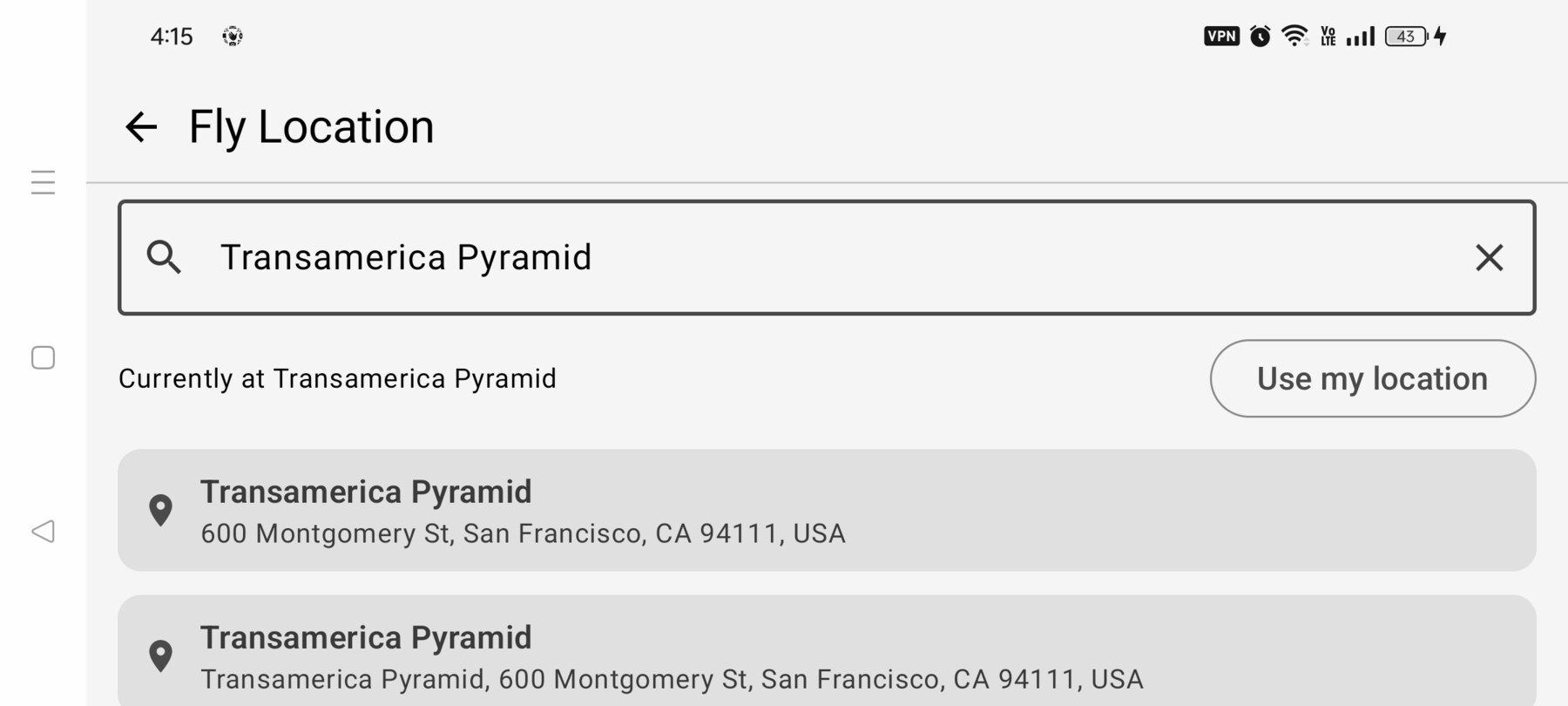
- Search Transamerica Pyramid or Coit Tower.
- Wait for the 3D mesh to finish streaming. A flat first frame is normal.
- Fly or yaw around the area. Look for foreground objects, leading lines and a clean background.
- Check that the buildings are photoreal, not flat terrain.
3. Choose a shot type
- Establishing: explain the place and its scale.
- Reveal: create curiosity, then uncover the subject.
- Push-in: increase attention on a detail.
- Pull-away: reveal context or isolation.
- Orbit: show volume and relationship.
- Tracking: follow a line and create speed.
If you cannot choose, pick the simplest move that supports the sentence. A clean push-in beats a complicated orbit with no purpose.
4. Fly the movement
- Hold a hover on the start frame.
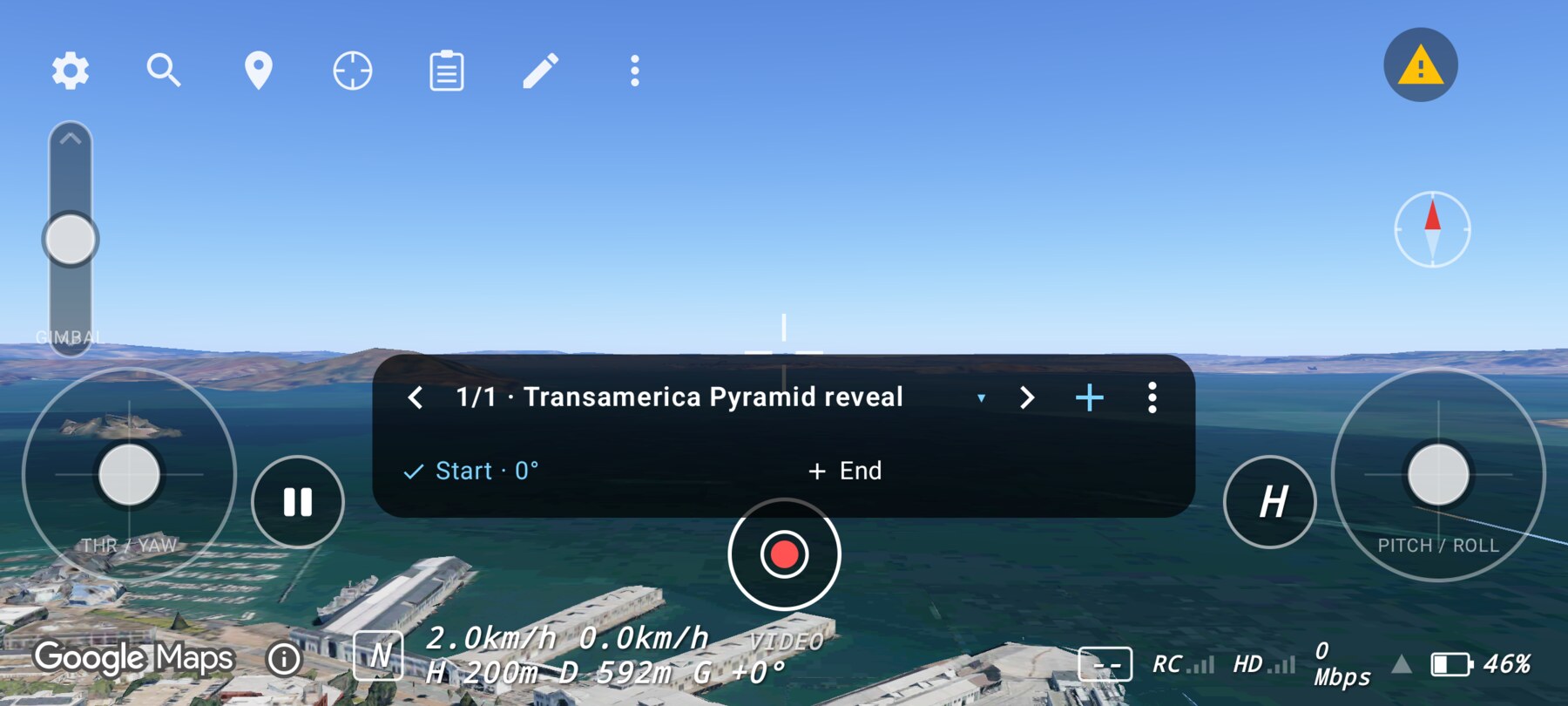
- Open More map tools → Shot controls to show the shot bar.
- Tap Add here to create a shot at the current view.
- Fly the movement, then stop on the end frame.
- Tap + End in the shot bar to capture the end pose.
5. Name and describe it
Open the shot actions menu → Edit instructions. Give the shot a clear name such as “Transamerica Pyramid reveal”, choose a shot type, and write the movement in plain language.
Good instructions describe the start frame, the direction and pace, and the end frame. “Slow push-in from the north, ending with the spire in the upper third” is more useful than “fly forward”.
6. Capture or document the result
Use the shutter to capture a reference photo, or record the screen for a moving reference. Hide the HUD with Clean capture view if you want a clean frame. Then export the plan as JSON if you need to keep or share the planning data.
7. Turn it into a real-world brief
Add the location, purpose, start position, movement, end frame, risks and permissions to the shot brief template. That document is what a pilot or director can act on.
What is saved and what is not
Common mistakes
- Scouting only from the spawn. Fly the area; the best foreground may be behind you.
- Capturing the end pose before the drone settles. Wait for the frame to stop moving.
- Writing vague instructions. Name the direction, pace and end frame.
Try it yourself
Build one shot from start to finish: a named reveal of the pyramid with a captured start pose, a captured end pose and a one-sentence movement instruction. Success is a shot another pilot could understand without watching you fly.
Related guides
About the screenshots
Every screenshot and demo in this documentation was captured in FPV Map over the Transamerica Pyramid and the Financial District, San Francisco.
FPV Map is a simulator. It never sends commands to an aircraft, and virtual rehearsal is not a substitute for legal checks, a site survey or safe piloting.
Found a mistake or something that no longer matches the app? Report it.