Start here
Your first five minutes
Open the app, anchor the map to a real place, and make your first controlled movement.
Open the app, put the world over a real place, and make one controlled movement. No aircraft and no controller are required for this first flight.
You'll need
An Android phone with FPV Map installed. A controller is optional — the virtual sticks work.
What you'll learn
- Anchor the map to the Transamerica Pyramid or your own location.
- Recognise the live HUD and the two touch sticks.
- Hold a hover, then make a small deliberate movement.
1. Open the app and wait for the scene
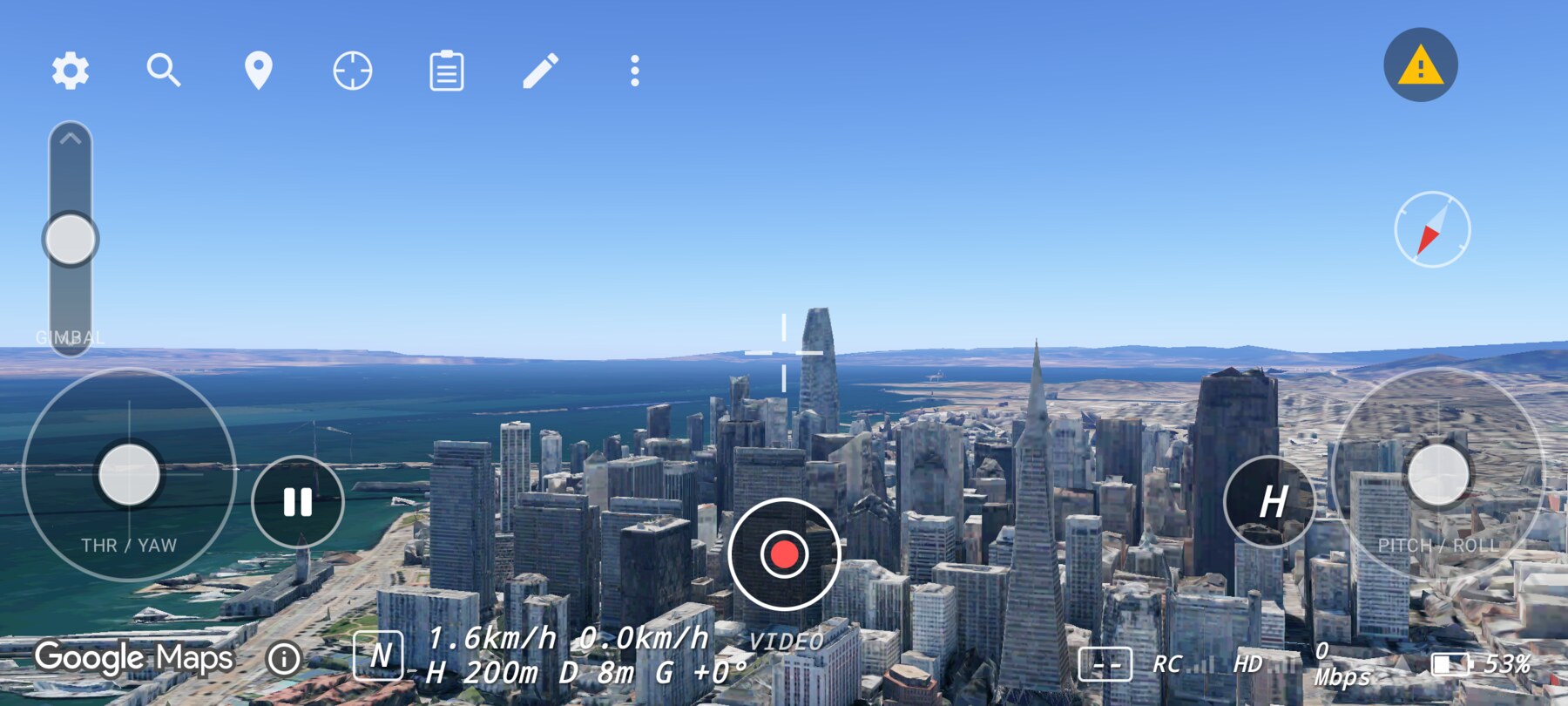
Launch FPV Map. The map is the home screen. A progress card covers the Google Maps 3D cold start while the scene streams in; wait for it to clear. The first frame can look flat — that is normal while the mesh is still loading.
2. Move the world to a real place
- Tap the Search locations icon (the magnifier) in the top-left row.
- Type a place. For the demos in this documentation, search Transamerica Pyramid.
- Tap the matching Places result. The app closes the search and re-anchors the map.
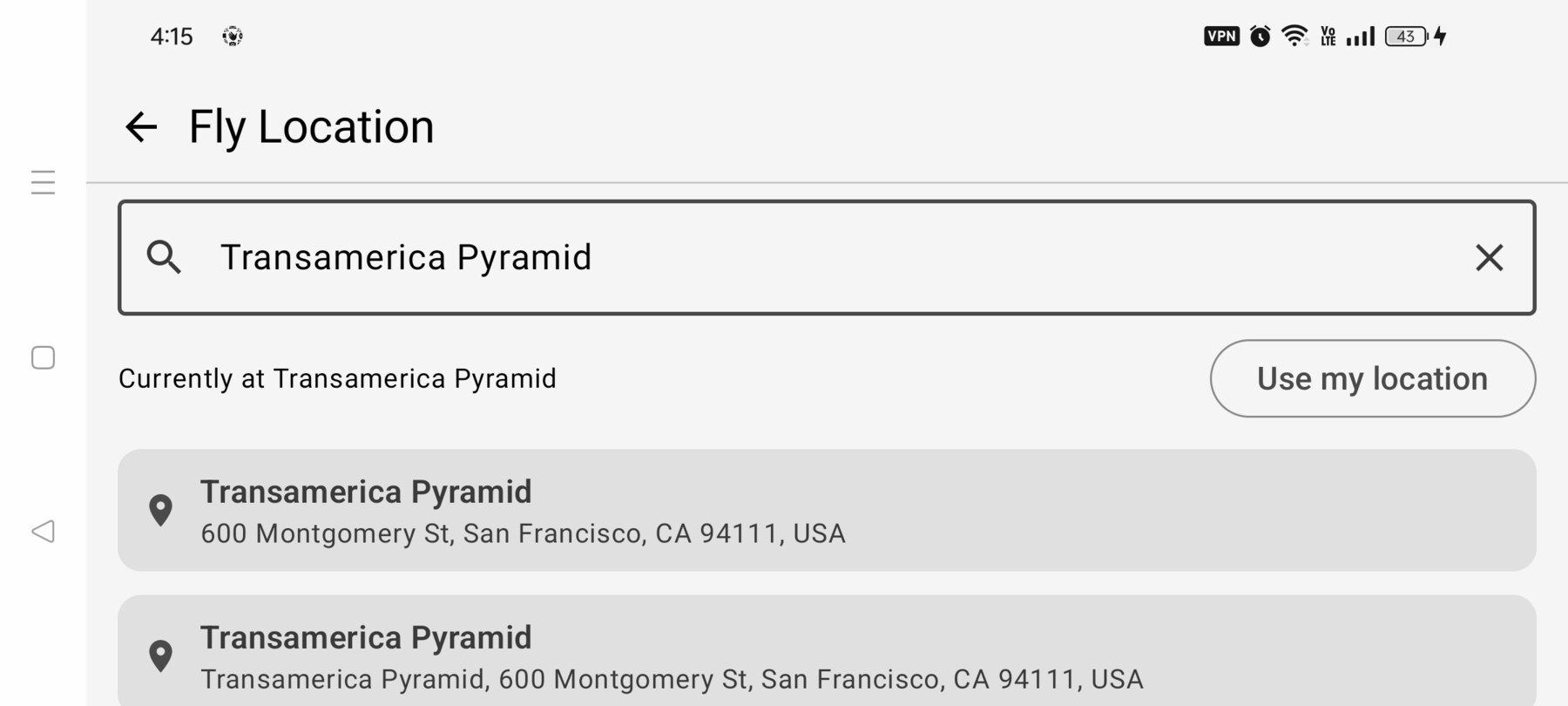
You can also tap Use my location to anchor the world to the phone. Location permission is required for that; a searched place does not need it.
3. Learn the two sticks
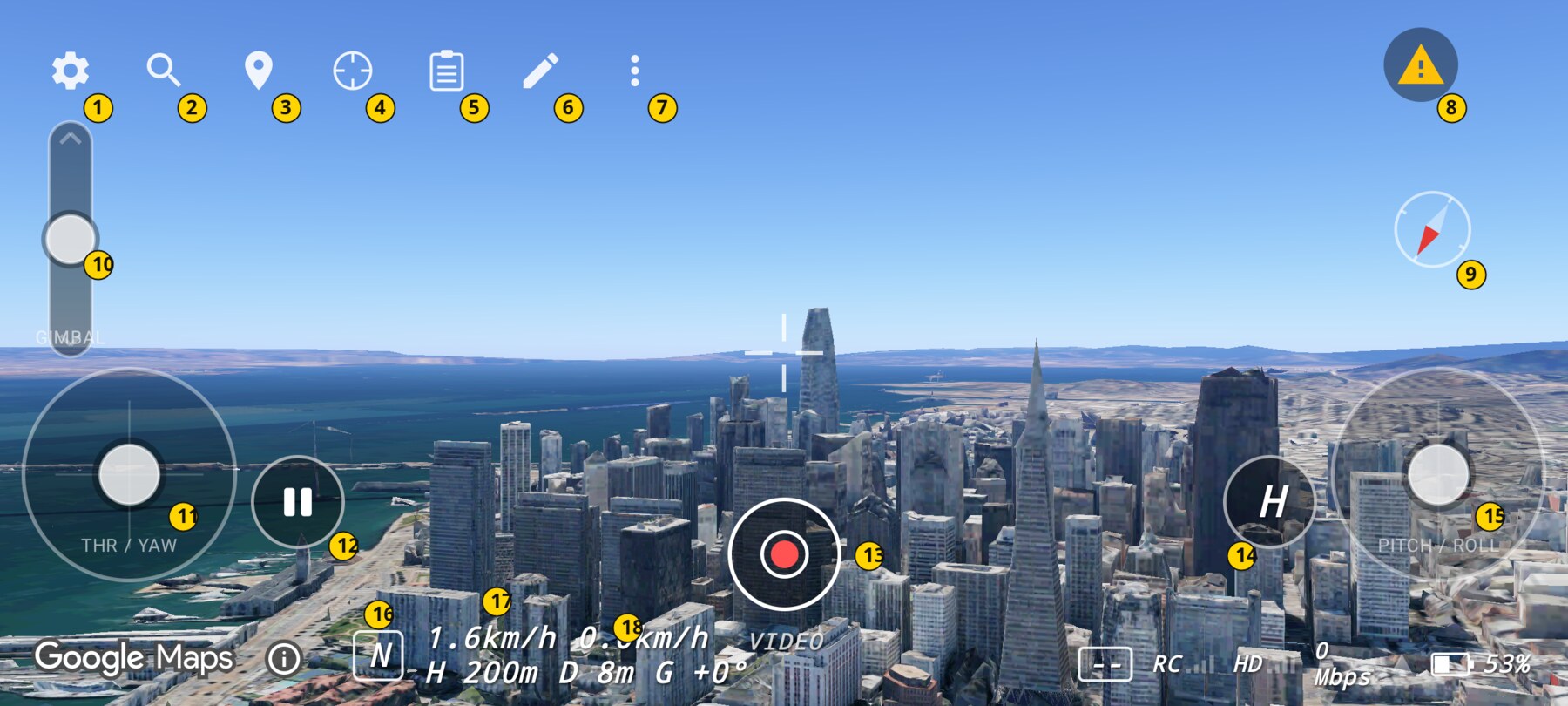
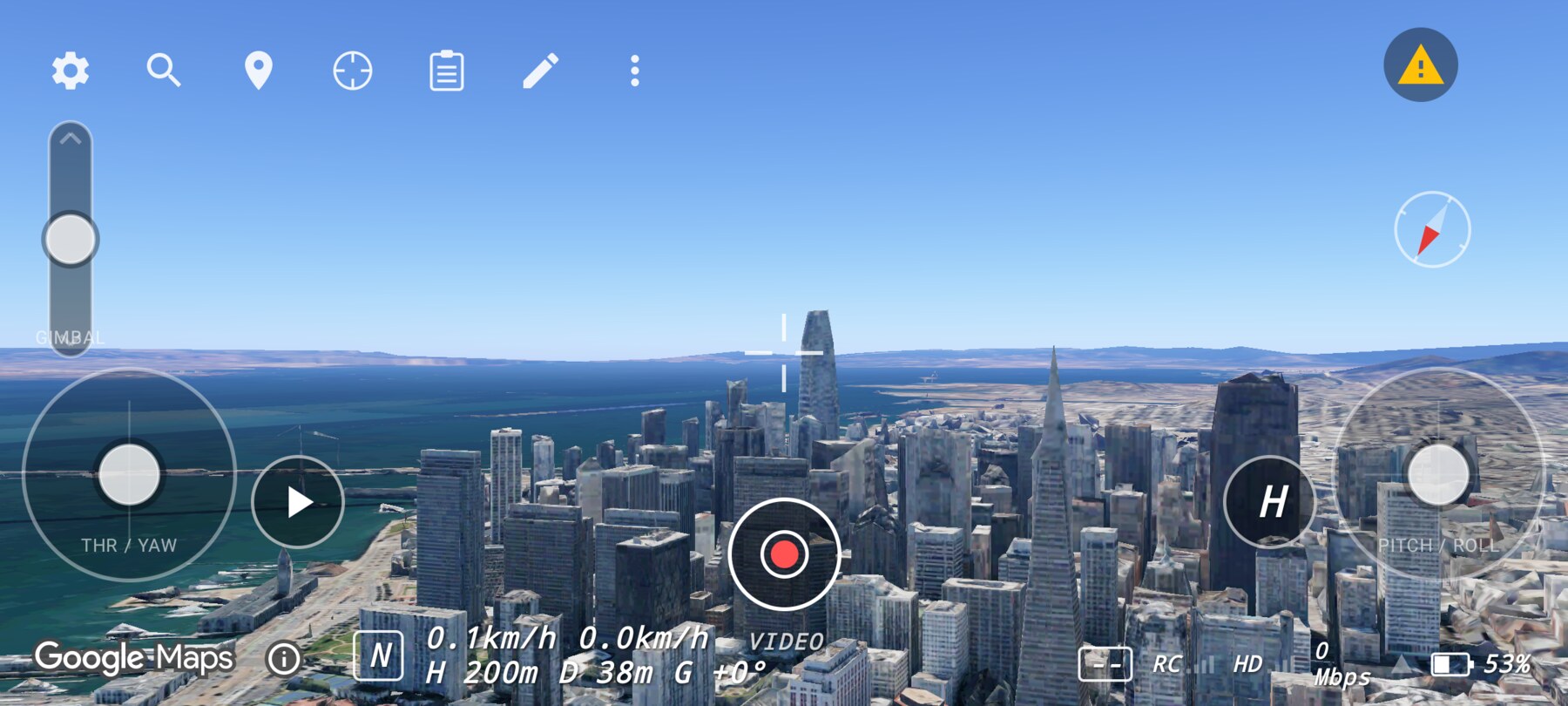
With no RC connected, two touch sticks appear. The left stick is labelled THR / YAW: up and down change altitude, left and right rotate the drone. The right stick is PITCH / ROLL: up and down move forward and backward, left and right move sideways.
Both sticks self-centre when you release them. In Normal and Sport, releasing the right stick levels the drone; releasing the left stick's vertical axis holds the current height.
4. Hold a hover
Tap Pause — the two-bar button beside the left stick. The sim enters an active hover hold and the button changes to a play triangle. Tap it again to resume stick control.
5. Make your first movement
- Press and hold the right stick and move it gently up. The drone moves forward.
- Release. The drone levels and slows to a stop.
- Press and hold the left stick and move it gently left. The view rotates left.
- Release, then try a small amount of up on the left stick to climb.
Use small inputs. The simulator smooths stick input, but large movements still produce large changes. If you overshoot, release the stick and let the model settle instead of adding more input.
What to look for
6. Stop safely
Tap Pause to hold a hover. If you want to go back to the spawn point, tap H. Any stick input cancels the auto-return and gives you control again.
When the world is anchored to a searched place far from the phone, H performs a cinematic globe fly-home to the phone's location instead of a short local return. That is intentional; it is not an abrupt reset.
Why this works
Starting with a hover and one axis at a time keeps the cognitive load low. You are learning three things at once — which stick does what, how much input produces how much movement, and how the camera responds. Separating them makes each one easier to judge.
Common mistakes
- Holding the stick while waiting for the scene to load. The scrim blocks input; wait for the progress card to clear.
- Using the right stick to turn. Yaw is on the left stick; the right stick only pitches and rolls.
- Flying forward to change altitude. In Normal and Sport, pitch and roll should not change height. Use the left stick's vertical axis.
- Confusing the gimbal rocker with the throttle. The tall slider on the left edge tilts the camera; it does not climb or descend.
Try it yourself
Anchor to the Transamerica Pyramid. Hold a hover, then fly forward for two seconds, stop, yaw 90° right, and hold a hover again. Success looks like: one smooth forward move, one clean stop, and the pyramid still visible somewhere in the frame.
Related guides
About the screenshots
Every screenshot and demo in this documentation was captured in FPV Map over the Transamerica Pyramid and the Financial District, San Francisco.
FPV Map is a simulator. It never sends commands to an aircraft, and virtual rehearsal is not a substitute for legal checks, a site survey or safe piloting.
Found a mistake or something that no longer matches the app? Report it.