Understand the app
Tour of the main interface
Every control on the map screen, and what it opens.
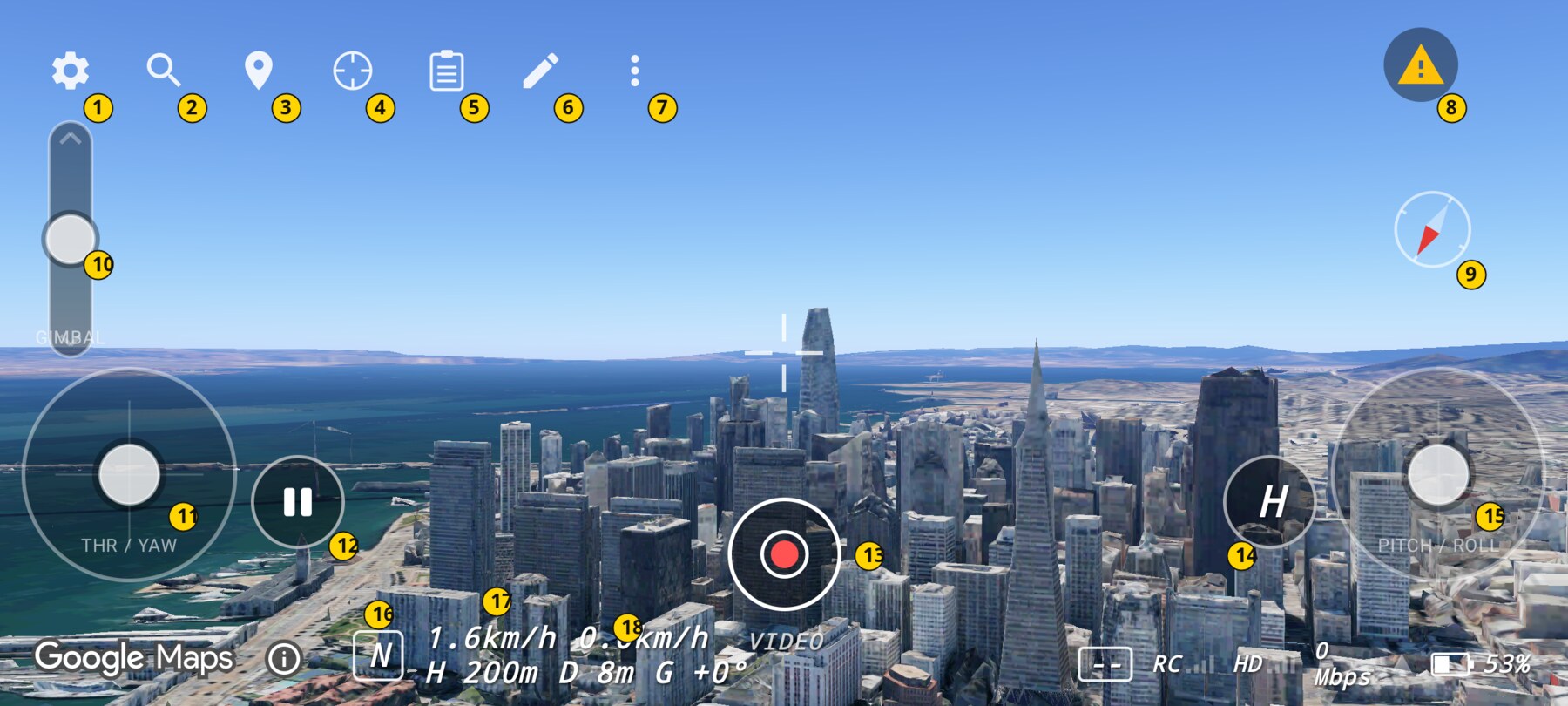
The map is the app. Every other screen opens over the live 3D view, so you never lose the scene while you change a setting or plan a shot.
Top control row
- Setup — opens Settings: HUD guides, flight setup, controller buttons, connection, visualizer, calibration, profiles, diagnostics and About.
- Search locations — opens Fly Location to anchor the world to a searched place or the phone's location.
- Show place names — switches the basemap to hybrid labels for streets and places. It auto-hides after 10 minutes because the label imagery streams more data.
- Fly here — runs the scripted cinematic fly-through to the ground point under the centre reticle.
- Flight plan and shots — opens the active flight plan and its shot list.
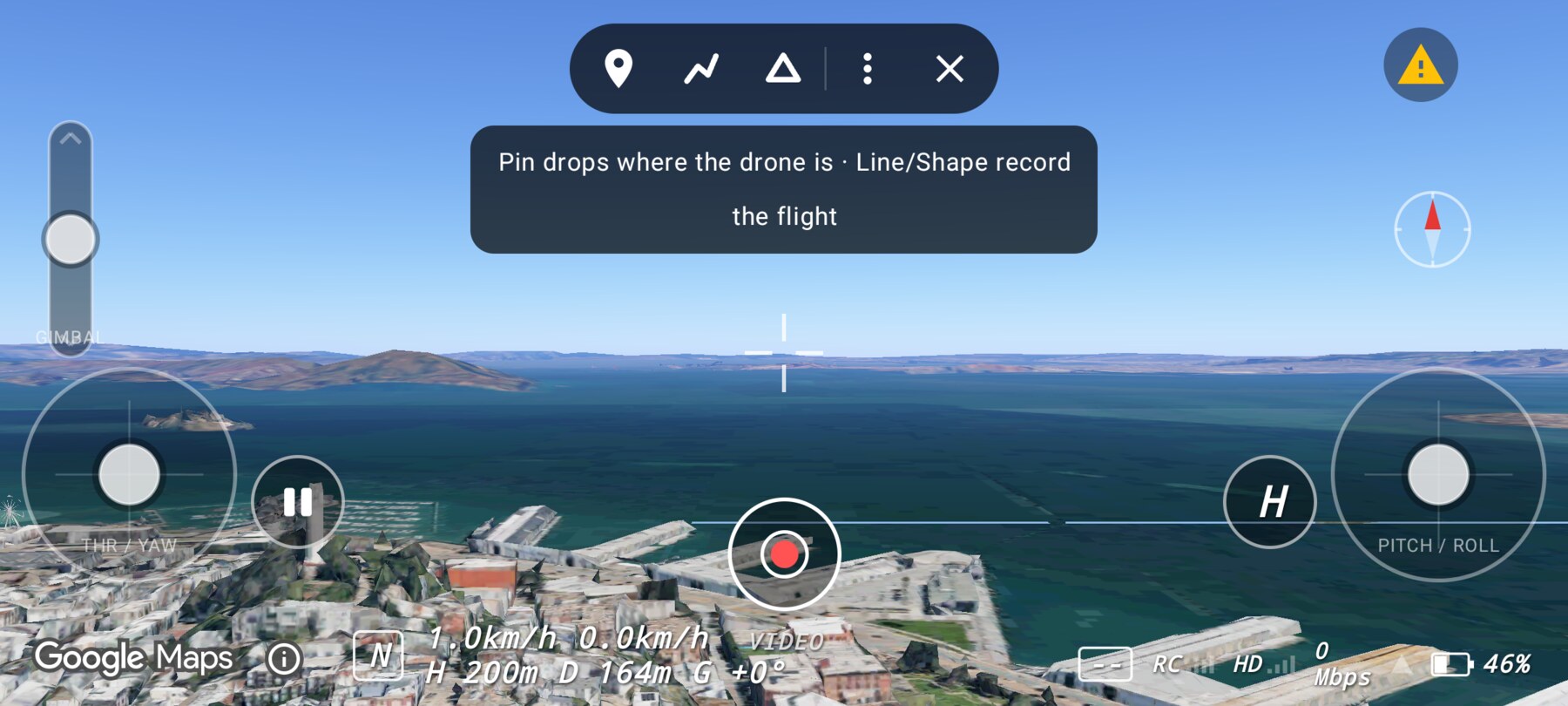
- Annotate by flying — opens the pen toolbar. Pins drop where the drone is; lines and shapes record the flown path.
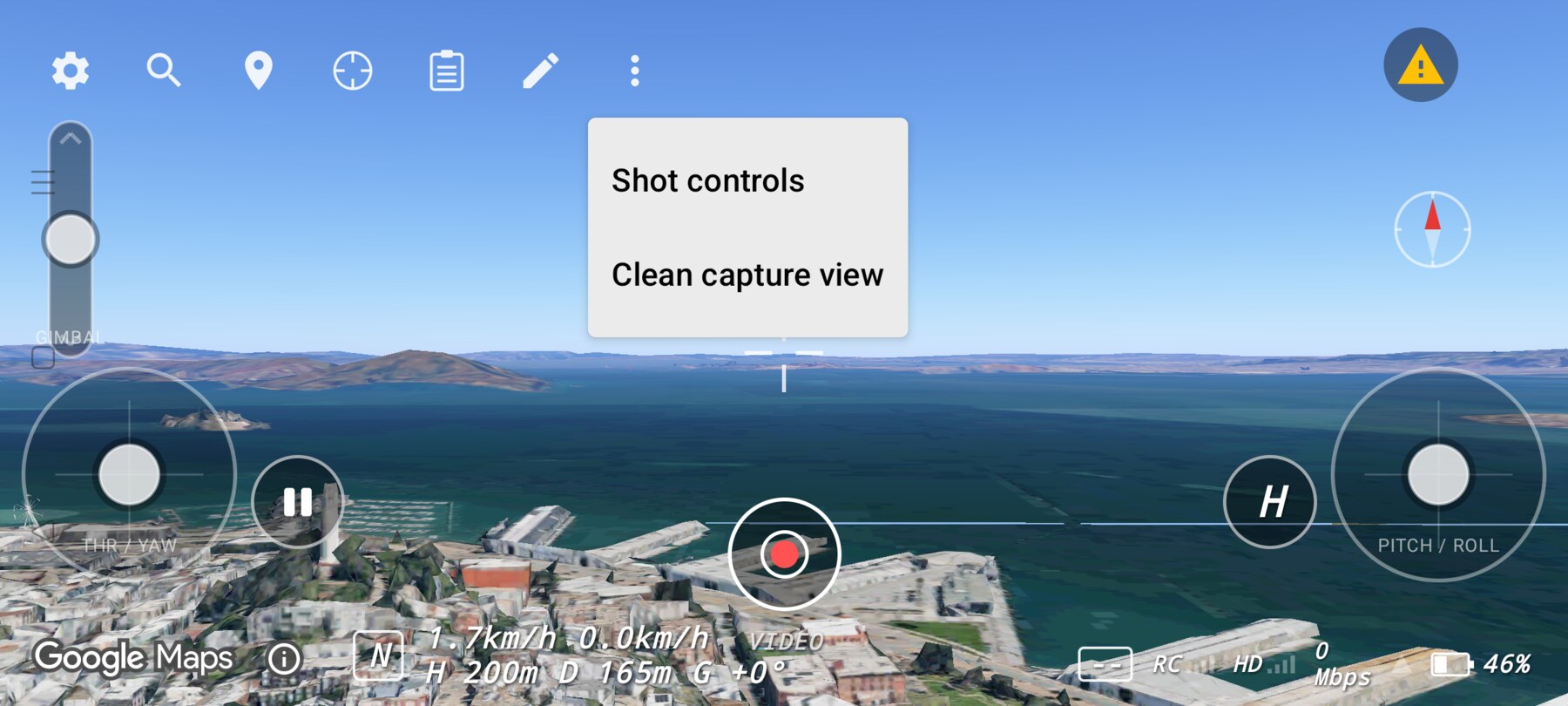
- More map tools — shows or hides the shot bar, and toggles Clean capture view.
- Controller status — a yellow warning icon means no controller is connected. Tap it for connection help.
Right side
- Compass — the red needle shows the drone's heading. North is up on the dial, not on the screen.
- PITCH / ROLL stick — the right touch stick. Up/down is forward/backward; left/right is sideways.
- H — smooth auto-return to home, followed by a hover. Any stick input cancels it.
Left side and bottom
- GIMBAL rocker — tilts the camera. Deflect to change the angle at a fixed rate; release to hold it.
- THR / YAW stick — the left touch stick. Up/down is throttle; left/right is yaw.
- Pause / Play — holds a hover when armed; resumes stick control. When disarmed, Play takes off.
- Shutter — tap to take a photo or start/stop video; hold, or tap the PHOTO/VIDEO label, to switch modes.
- Mode badge — N or S. Tap it to toggle Normal and Sport.
- Telemetry — horizontal speed, vertical speed, altitude, distance and gimbal angle. See the HUD guide.
- Status cluster — link quality, video link, bitrate and phone battery.
The pen toolbar
The pen replaces the top control row while it is open. It contains pin, line, shape, an overflow menu and a close button. The drone is the pen: a pin drops instantly at the current ground position, while a line or shape records the path you fly.
More map tools
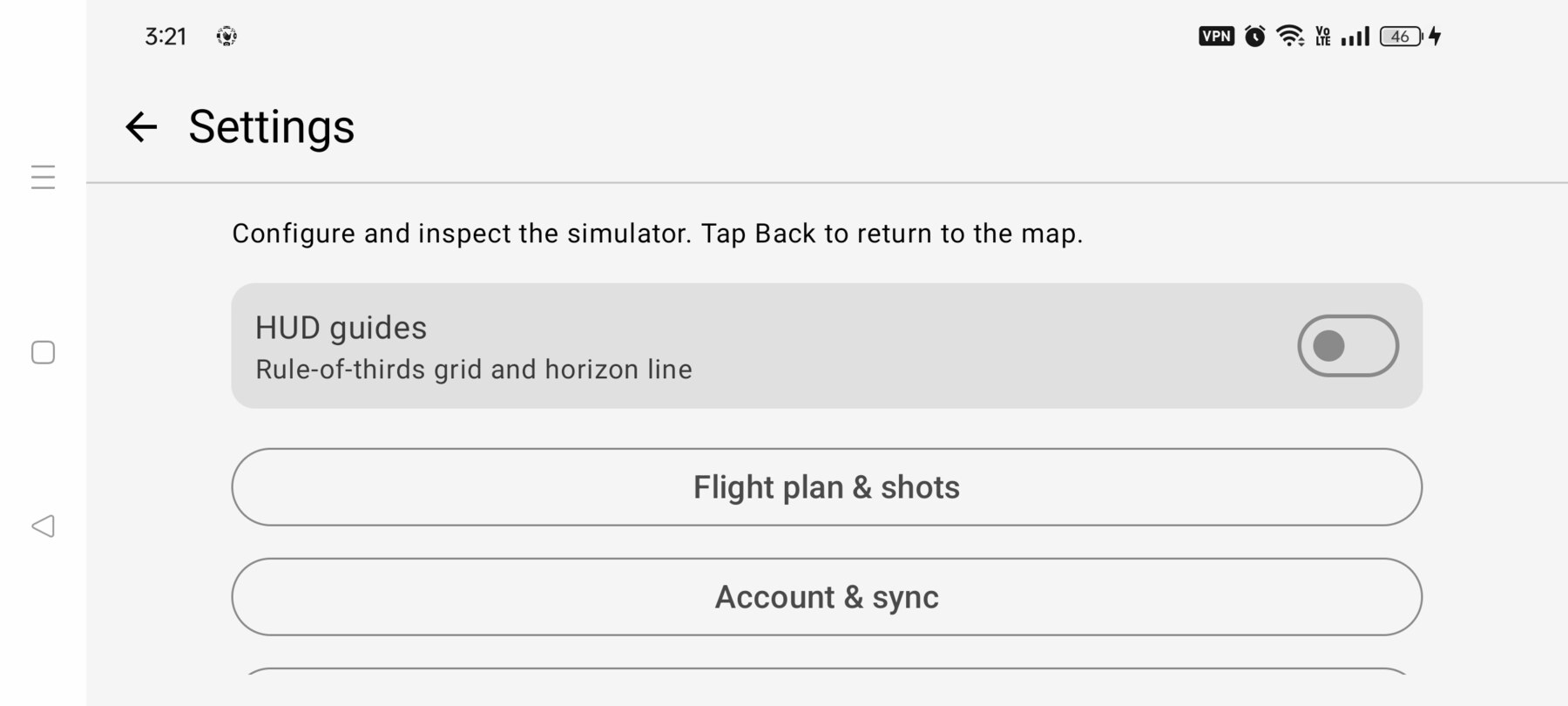
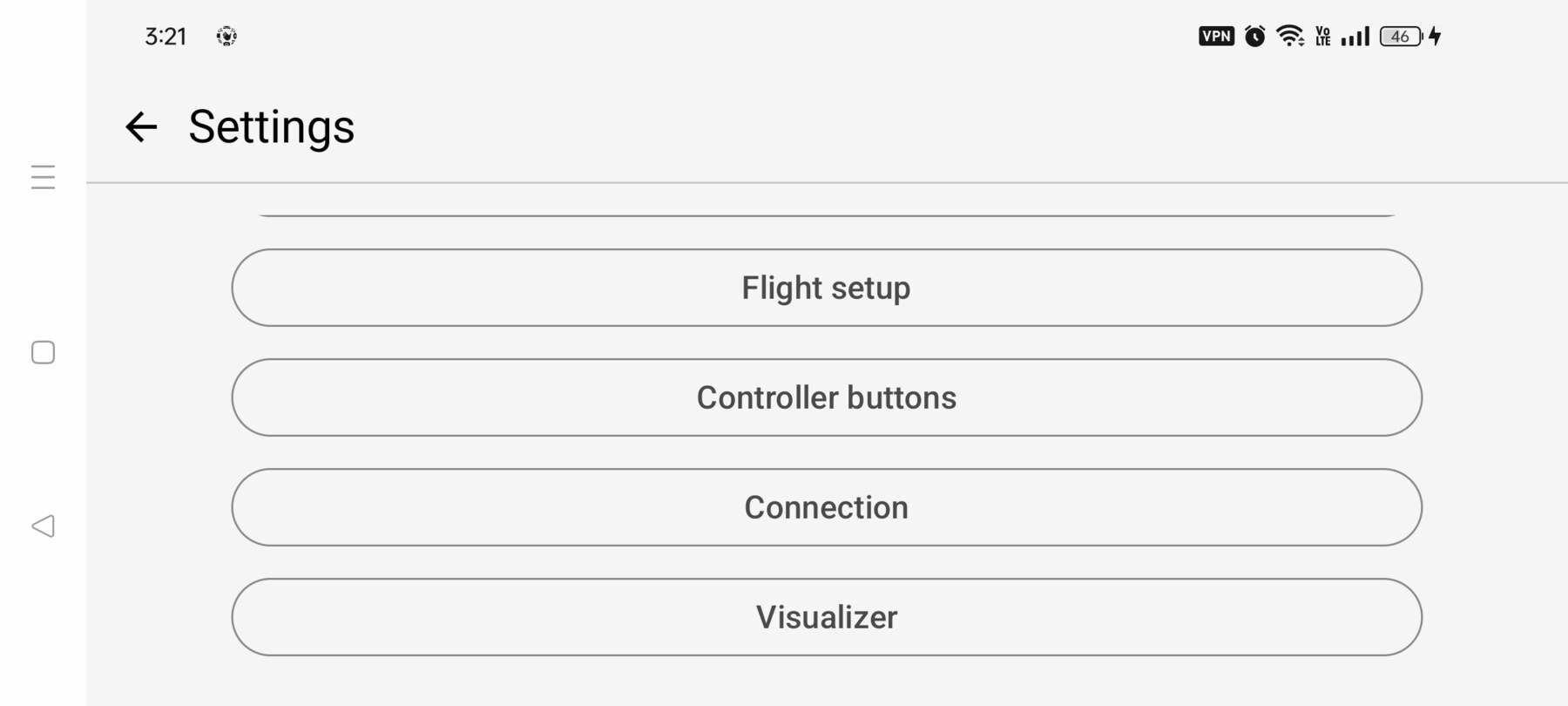
Settings
Settings is a scrolling list. The first screen has HUD guides, flight plans and the optional account. Scroll for flight setup, controller buttons, connection, visualizer, calibration, profiles, diagnostics and About.
Why the map never disappears
The Maps 3D SDK has no public cache API, and recreating its view replays the globe cold start. FPV Map therefore composes one live map view underneath every screen and draws settings and plans over it. That is why opening a menu does not reset the world or throw away streamed 3D tiles.
Related guides
About the screenshots
Every screenshot and demo in this documentation was captured in FPV Map over the Transamerica Pyramid and the Financial District, San Francisco.
FPV Map is a simulator. It never sends commands to an aircraft, and virtual rehearsal is not a substitute for legal checks, a site survey or safe piloting.
Found a mistake or something that no longer matches the app? Report it.