Understand the app
Play, Pause, Home and the gimbal
Take off, hold a hover, return, and tilt the camera.
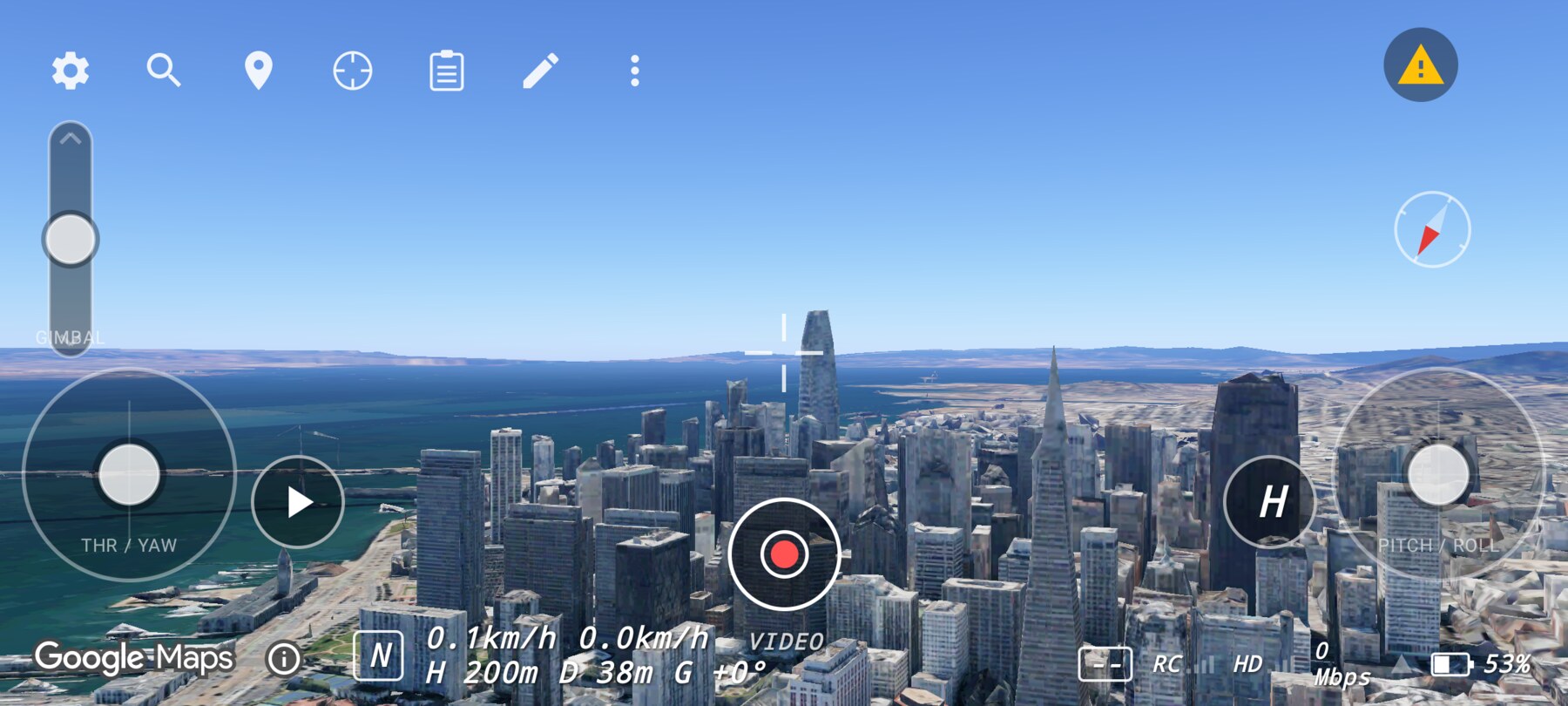
Four controls keep a virtual flight predictable: Play/Pause, H (home), the gimbal rocker, and the automatic pause while 3D terrain is streaming.
Play / Pause
- Disarmed: the button shows Play. Tapping it arms the sim and starts the flight.
- Armed: the button shows Pause. Tapping it enters an active hover hold: the drone stops responding to the sticks and holds station.
- Paused: the button shows Play again. Tapping it resumes stick control.
The sim opens armed in a lookout, so the first press is usually Pause. The HUD changes the glyph, not the layout.
H — return to home
H starts a smooth auto-return to the home point, then holds a hover there. Any stick input cancels the return and hands control back. There is no separate reset button.
If the world is anchored to a searched place that is far from the phone, H runs a cinematic globe fly-home: the camera zooms out to the globe, swings around to the pilot, and zooms back in to the spawn lookout at the phone's location. The anchor changes at the top of the zoom-out so the transition is invisible. This is deliberate, not an abrupt reset.
Gimbal rocker
The tall rocker on the left edge tilts the camera. Deflect it to tilt at a fixed rate; release it to hold the angle. The range is roughly −90° (straight down) to +15° (slightly up). The G readout shows the current pitch.
The camera is gimbal-stabilised: yaw follows the drone, but pitch and roll stay horizon-level regardless of body attitude. This is why a banking turn does not roll the horizon.
No RC?
Automatic terrain hold
When the renderer is actively streaming new 3D tiles, the sim freezes behind a "Loading 3D terrain" card and resumes when the scene is steady. This prevents terrain-refinement camera jerk from appearing in the middle of a shot. A scene that is steady but below 100% is a coverage limit, not a loading stall, so it does not pause the flight.
The first map load uses the same idea: a progress card covers the globe cold start until the scene is ready. If loading takes too long, the card offers Continue anyway after 15 seconds and stops waiting at 45 seconds.
When the controller disconnects
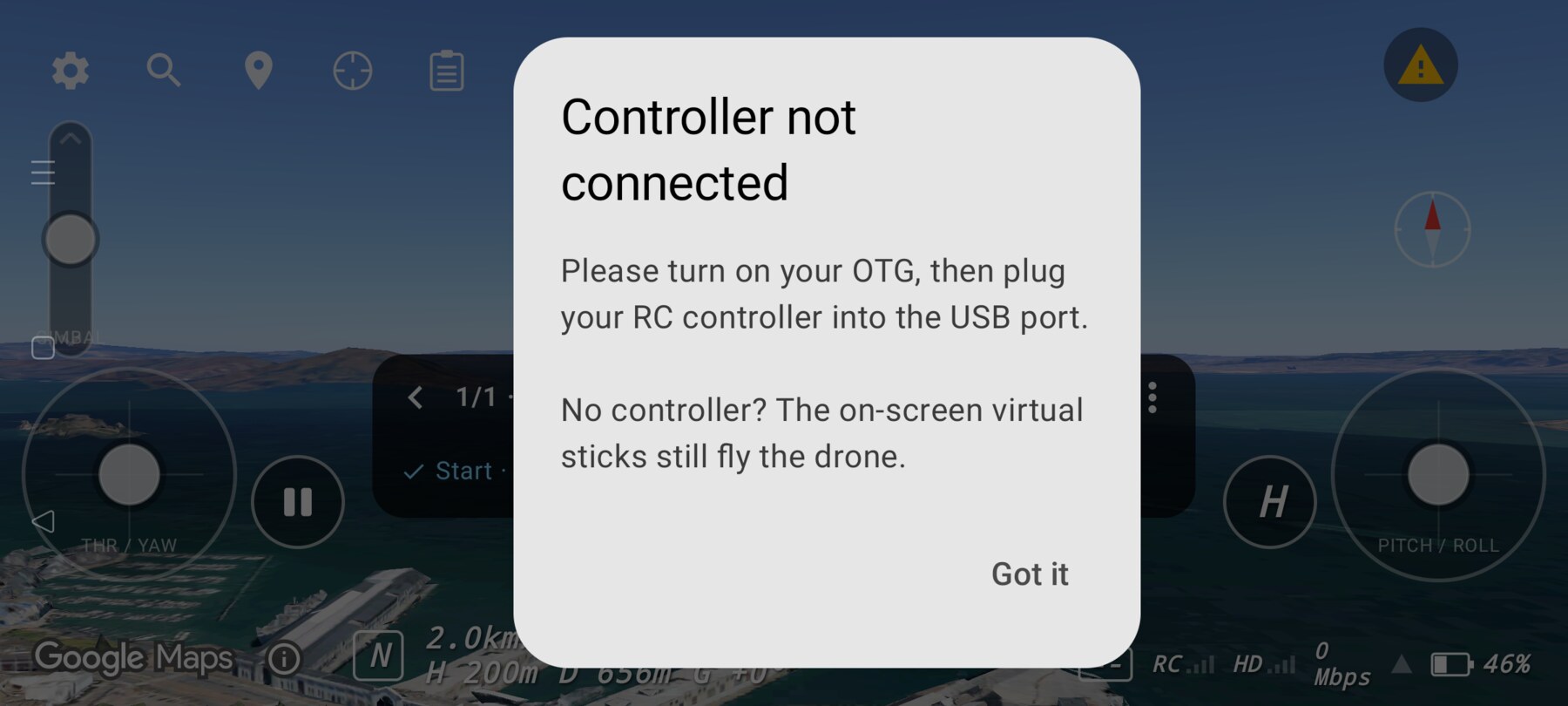
A yellow warning icon appears in the top-right corner and the virtual sticks return. The app does not show a full-screen error. Tap the icon for the connection reminder.
Why this works
A rehearsal tool needs a reliable “stop” that does not depend on perfect stick input. Hover hold, home and the terrain freeze all reduce the chance that a technical hiccup ruins a shot or a learner's confidence.
Common mistakes
- Pressing H while already home. It still runs the return; nothing breaks, but it is unnecessary.
- Fighting the terrain hold. The sim is frozen on purpose. Wait for the card to clear.
- Using the gimbal rocker to climb. It only tilts the camera; altitude is the left stick.
Related guides
About the screenshots
Every screenshot and demo in this documentation was captured in FPV Map over the Transamerica Pyramid and the Financial District, San Francisco.
FPV Map is a simulator. It never sends commands to an aircraft, and virtual rehearsal is not a substitute for legal checks, a site survey or safe piloting.
Found a mistake or something that no longer matches the app? Report it.