Understand the app
Reading the goggle HUD
What each OSD element means, including the ones that are cosmetic.
The HUD is modelled on the DJI Avata 2 goggle OSD. It is meant to feel familiar, not to claim that every number is aircraft telemetry.
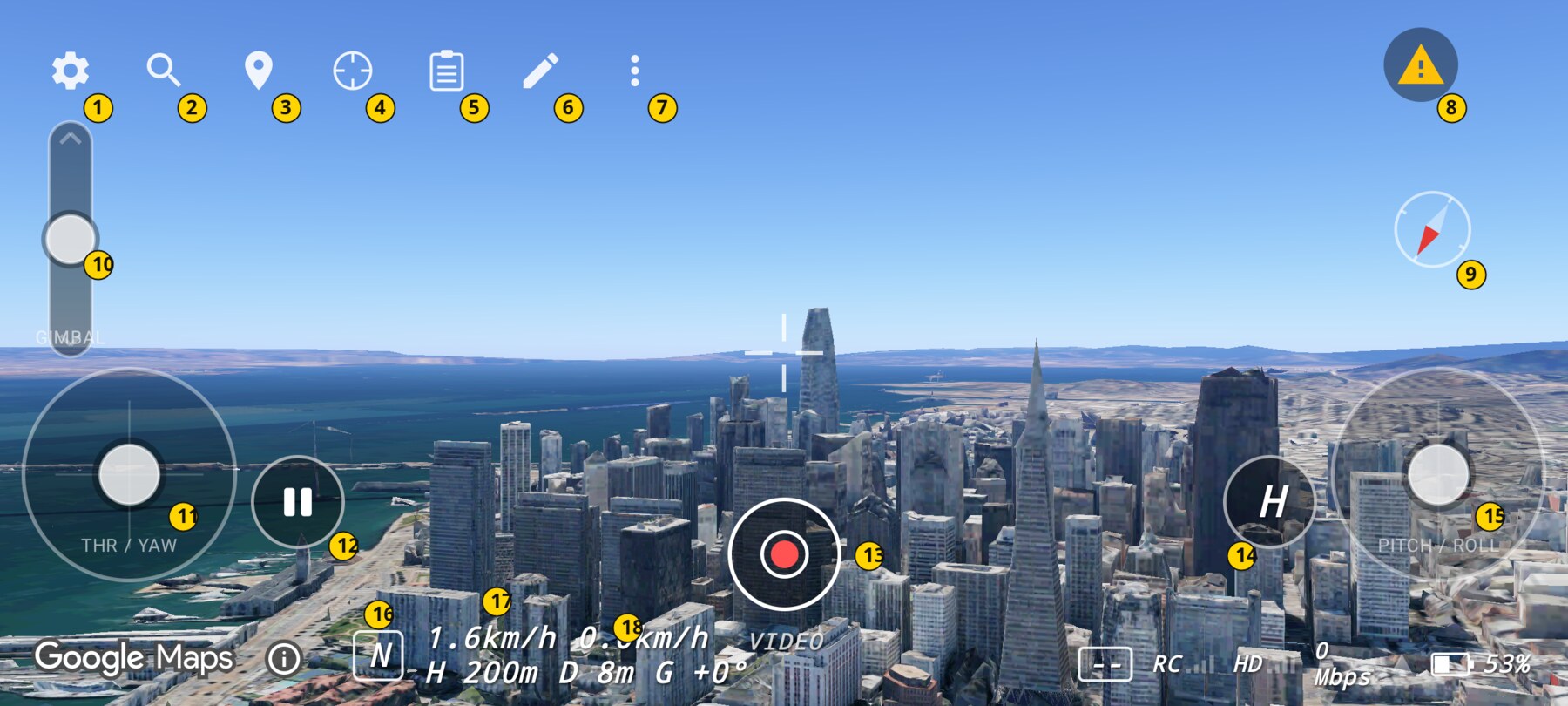
Top controls (1–8)
- Setup — Settings.
- Search locations — Fly Location.
- Show place names — hybrid basemap labels; auto-hides after 10 minutes.
- Fly here — scripted cinematic move to the reticle target.
- Flight plan and shots — the active plan.
- Annotate by flying — the pen toolbar.
- More map tools — shot bar and clean capture view.
- Controller warning — no RC connected. Tap for help.
Compass (9)
The compass shows the drone's heading. The red needle points to the drone's forward direction relative to north; it is not a map-north indicator for the screen. Use it to hold a heading while yawing.
Gimbal rocker (10)
A vertical rocker on the left edge. Moving it changes the camera tilt at a fixed rate; releasing it holds the current angle. The travel matches the Avata 2's camera: roughly −90° (straight down) to +15° (slightly up). The G readout shows the current angle.
Touch sticks (11 and 15)
These appear when no RC is connected. The left stick is THR / YAW; the right stick is PITCH / ROLL. Both self-centre when released. The sticks are not shown while an RC 3 is connected.
Flight assists (12 and 14)
- Pause / Play — holds a hover or resumes. When disarmed, Play takes off.
- H — auto-return to home and hover. Any stick input cancels it.
Shutter (13)
Tap to take a photo or start/stop video. Hold the button, or tap the PHOTO / VIDEO label, to switch modes. The label also shows REC while recording.
Mode badge (16)
N is Normal, S is Sport and M is Manual. Tap the badge to toggle N and S. Manual is selected in Flight Setup or by the physical N/S/M switch on the RC 3.
Telemetry (17 and 18)
| Readout | Meaning |
|---|---|
| 1.6km/h | Horizontal speed. The idle drift is normally around 2 km/h. |
| 0.0km/h | Vertical speed. Positive is climbing, negative is descending. |
| H 200m | Height above ground. Every world spawns at 200 m. |
| D 8m | Horizontal distance from home. A pure climb does not change it. |
| G +0° | Gimbal pitch. 0° is level; negative looks down. |
Status cluster (bottom right)
- Link quality number and bars — derived from the controller report rate. With no controller, it shows
--. - HD / Mbps — cosmetic video-link styling. It does not represent a real aircraft video feed.
- Battery percentage — the phone's battery, not a drone battery.
What is real and what is styling
HUD guides
Settings → HUD guides adds a rule-of-thirds grid and a horizon line. It is off by default. The guides are useful when you are learning to hold a horizon level or place a subject on a third.
Clean capture view
More map tools → Clean capture view hides the whole HUD but keeps the live map. Double-tap the map to bring the HUD back. This is the mode used for the clean demo frames in these docs.
Related guides
About the screenshots
Every screenshot and demo in this documentation was captured in FPV Map over the Transamerica Pyramid and the Financial District, San Francisco.
FPV Map is a simulator. It never sends commands to an aircraft, and virtual rehearsal is not a substitute for legal checks, a site survey or safe piloting.
Found a mistake or something that no longer matches the app? Report it.