
Learn the controls
Connect the DJI RC 3
Cable, OTG, USB permission and what a healthy connection looks like.
Connect a DJI FPV Remote Controller 3 over USB-C/OTG, grant USB permission, and confirm that the app is receiving reports before you try to fly.
You'll need
A DJI RC 3, a data-capable USB-C cable, and an Android phone that supports USB host/OTG.
What you'll learn
- Connect the RC 3 and recognise the connected state.
- Know what to do if Android does not offer USB permission.
- Verify stick input in the Visualizer before flying.
Documentation capture note
Before you connect
- Power the RC 3 on.
- Use a USB-C cable that carries data. Many charge-only cables enumerate nothing.
- Do not power an aircraft. FPV Map is read-only toward hardware; test with the aircraft off and stored.
- Close any other app that might claim the USB device.
Connect and grant permission
- Plug the RC 3 into the phone.
- If Android shows a USB permission prompt, allow FPV Map to access the device.
- Open FPV Map. The controller warning icon should disappear when the app is receiving reports.
- Open Setup → Connection and confirm the state and report rate.
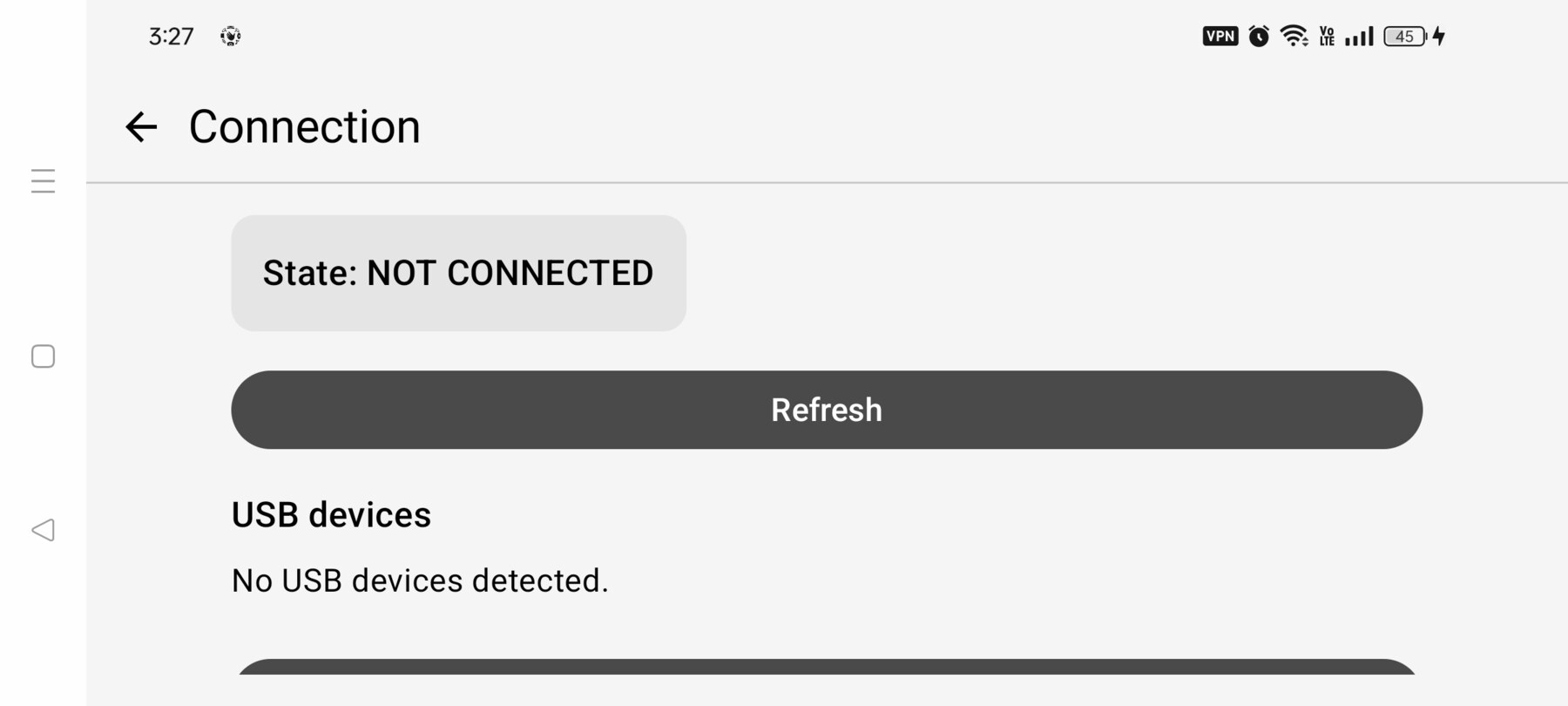
What a healthy connection looks like
- The USB device is listed as
0x2CA3:0x1021, the DJI Virtual Joystick. - Reports arrive at roughly 198 Hz.
- The HUD warning icon is gone.
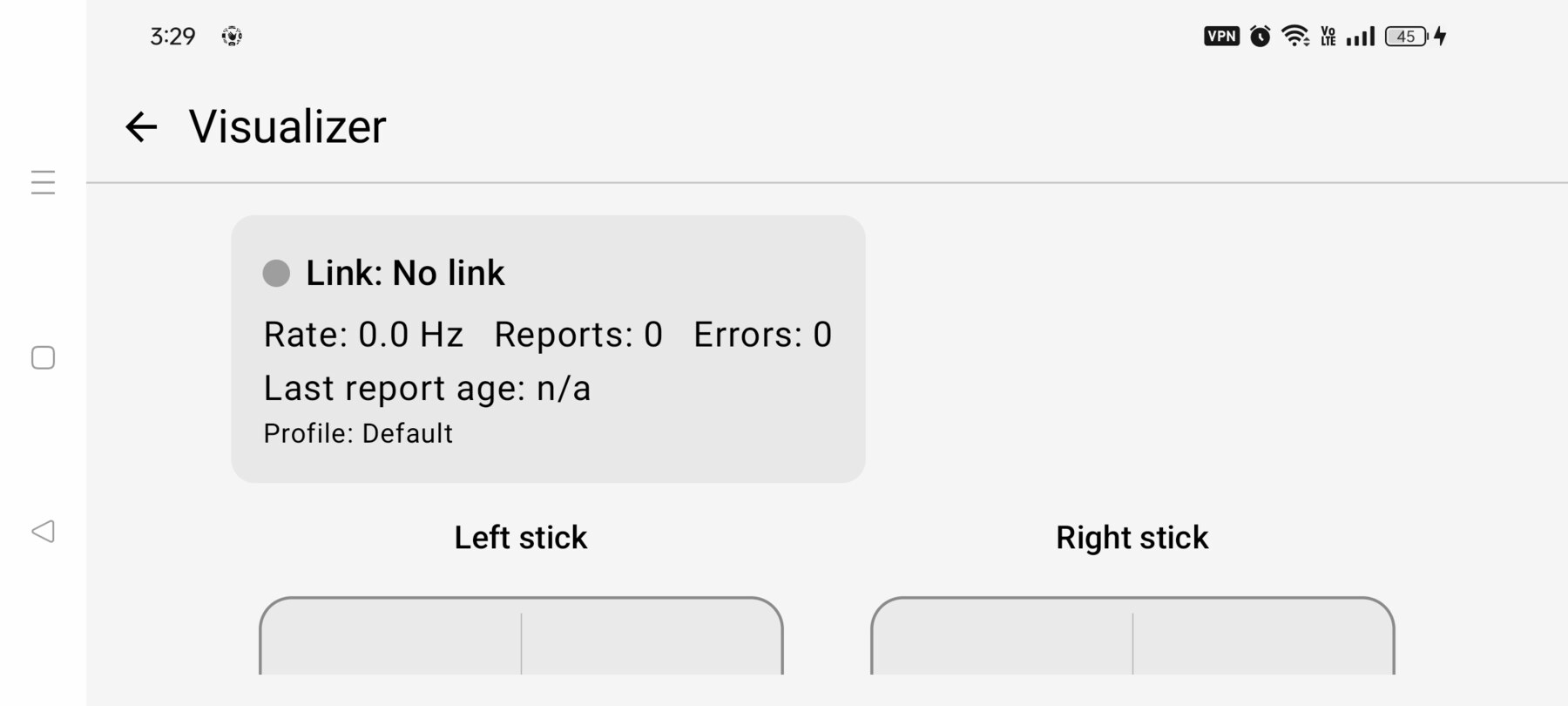
- Setup → Visualizer shows the sticks and dial responding.
- The link quality number in the HUD is populated.
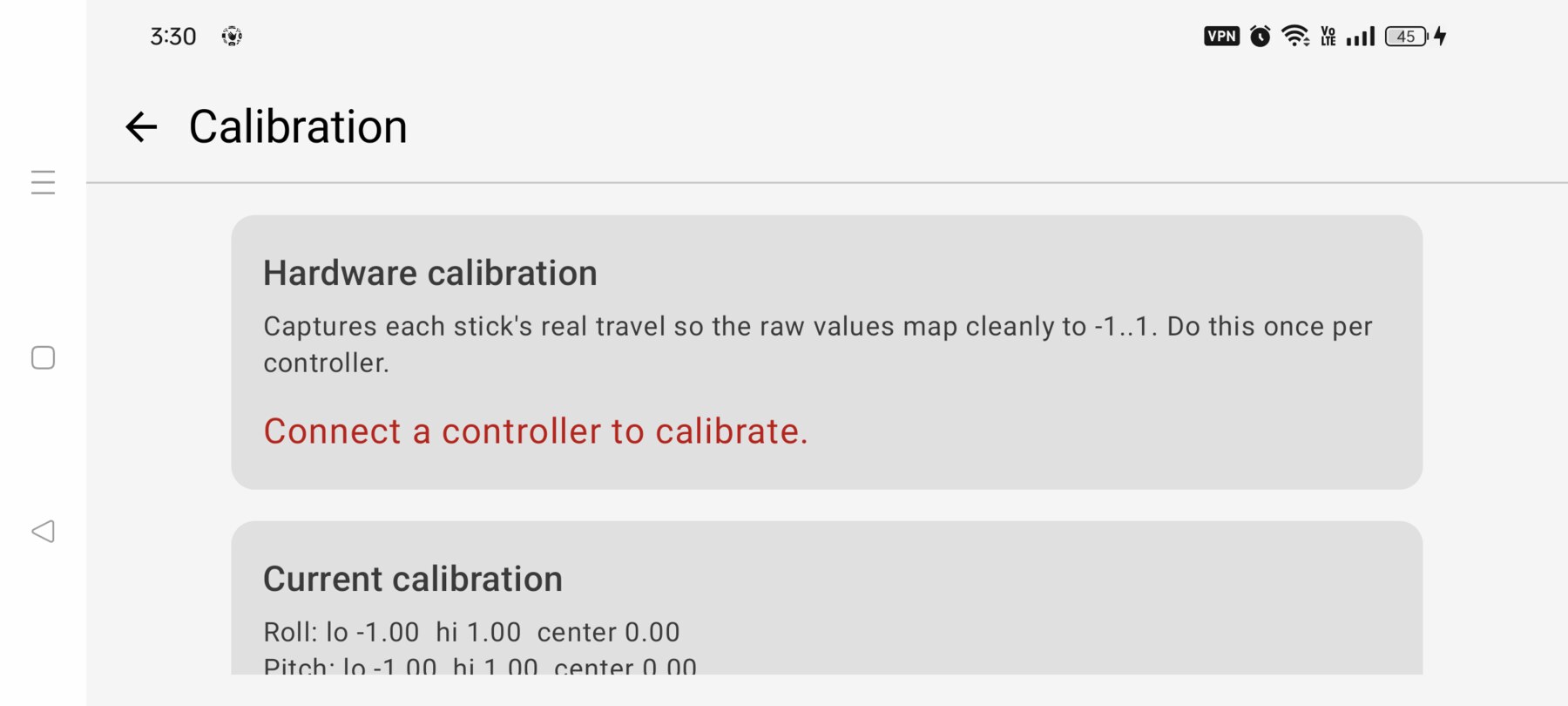
Calibrate once per controller
Calibration captures each stick's real travel so the raw values map cleanly to −1…1. Do it once per controller, then leave it alone unless the sticks feel asymmetric.
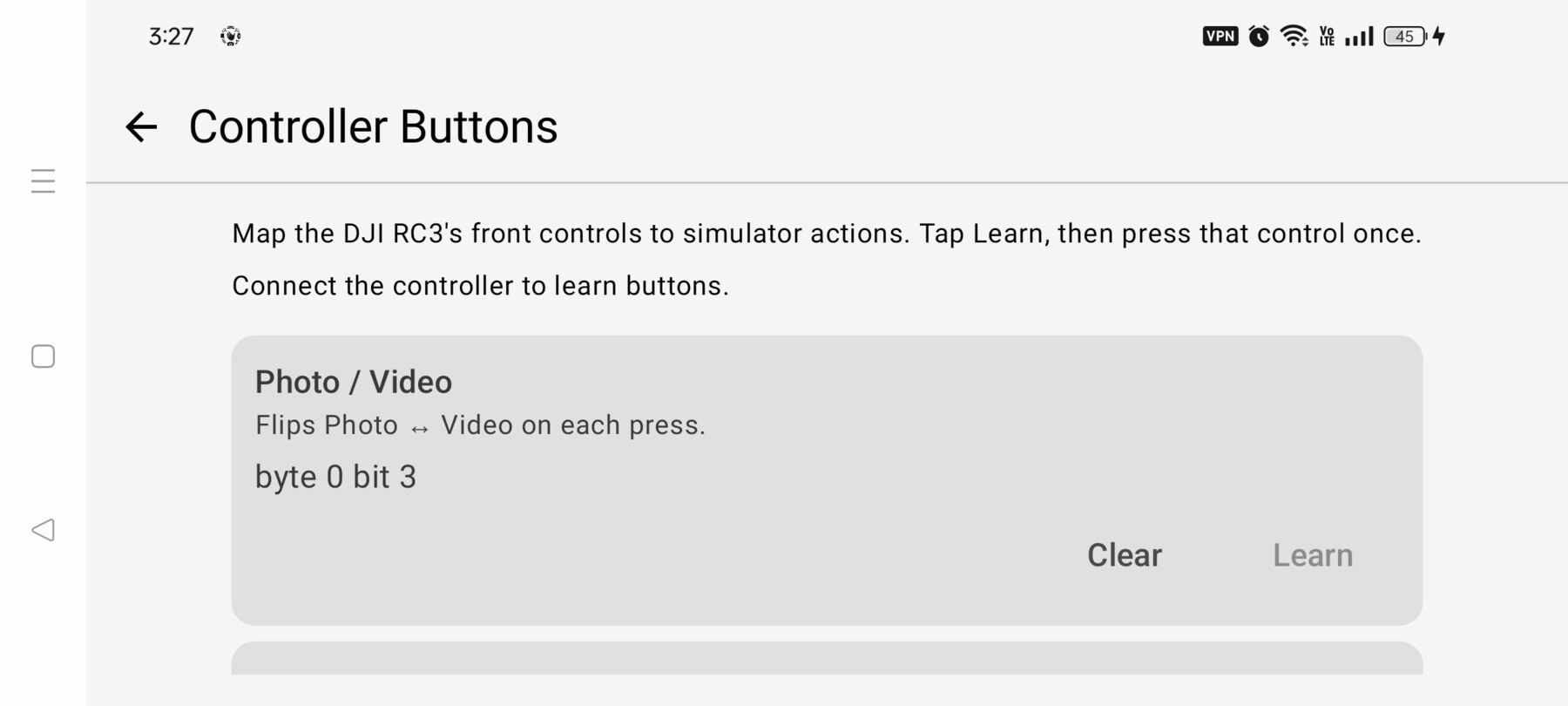
Learn the front-panel buttons
DJI does not document every HID bit, so FPV Map learns the front-panel controls from the hardware. Open Setup → Controller buttons, tap Learn for an action, then press that control once.
The N/S/M switch is a two-bit code, not a single toggle. The app decodes both bits so Normal, Sport and Manual are distinct, and it applies the current switch position as soon as the controller connects.
Troubleshooting the connection
- No USB prompt: try another cable, then another OTG adapter. Confirm the phone supports USB host mode.
- Device listed but no reports: unplug, power-cycle the RC 3, and reconnect.
- Sticks move but buttons do not: relearn the front-panel buttons. A firmware change can move the bits.
- One rocker does nothing: the C1/C2 rocker is currently unassigned; that is expected.
Why this works
Confirming input before flying separates a hardware problem from a flight-model problem. If the Visualizer responds, the transport and parser are working; if the drone still behaves oddly, the cause is calibration, tuning or the selected mode.
Related guides
About the screenshots
Every screenshot and demo in this documentation was captured in FPV Map over the Transamerica Pyramid and the Financial District, San Francisco.
FPV Map is a simulator. It never sends commands to an aircraft, and virtual rehearsal is not a substitute for legal checks, a site survey or safe piloting.
Found a mistake or something that no longer matches the app? Report it.